Skip Ribbon Commands
Skip to main content
Sign In
cetl_en

    Blackboard Collaborate Ultra

    Go to All Resources

    Videos: “Part 1”, “Part 2” 
    Documentation for Faculty: “Using Collaborate Ultra
    Documentation for Students: “Using Collaborate Ultra
     
    Information on this page:

    Browser Support

    Collaborate Ultra requires a modern web browser with WebRTC support. We recommend Google Chrome browser. The most recent releases of the following browsers on desktop/laptop computers and mobile devices are also supported:
    BrowserDesktopMobile
    Google ChromeWindows 10&11, macOS 10.14+
    Android 9+
    Firefox® Windows 10&11, macOS 10.14+Not supported
    Safari® macOS 10.14+iOS® 14+
    Microsoft Edge®Windows, macOS
    Android, iOS

    Please note that Internet Explorer is NOT supported.

    Access the BB Collaborate Ultra tool

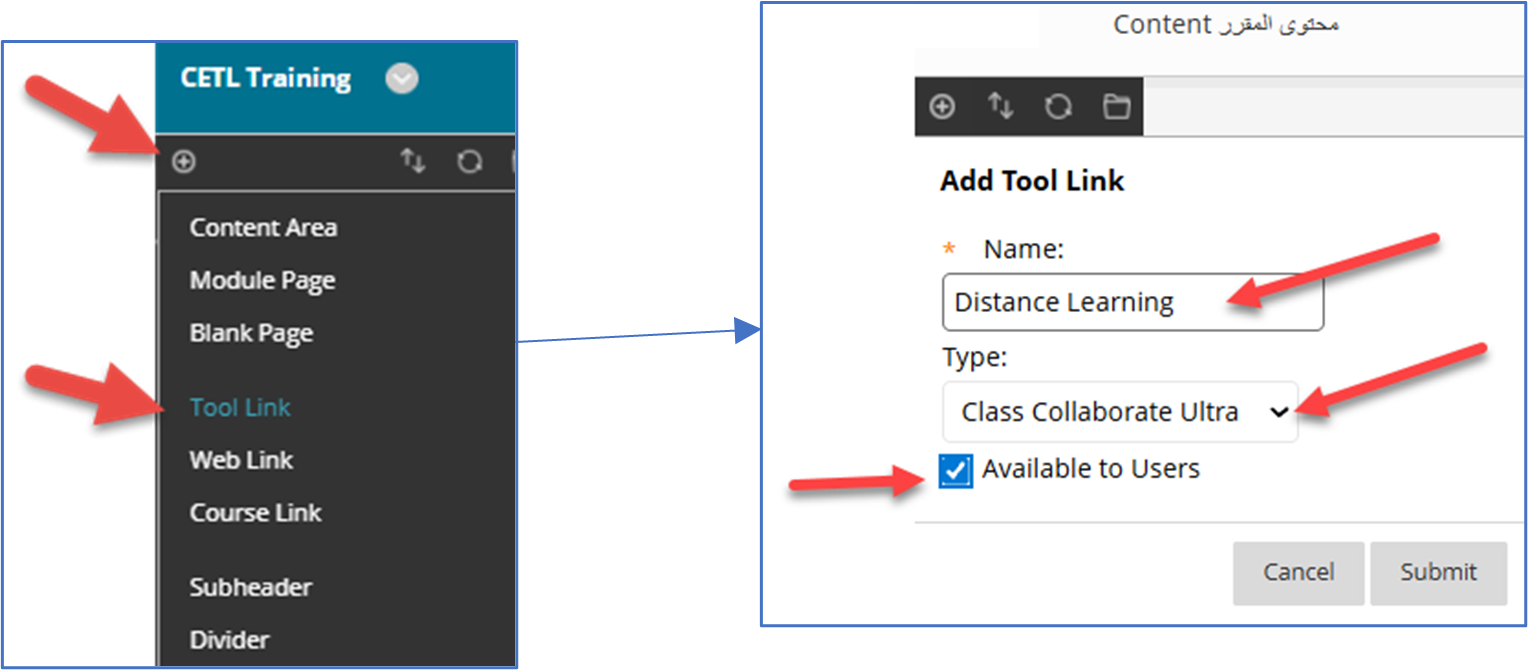
    You can access the Class Collaborate Ultra tool from the “Distance Learning” link on the course menu.
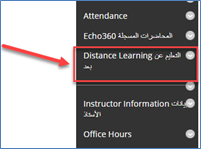
    Distance Learning-IMAG-1.png
     

    If you do not have the “Distance Learning" link in your course menu, you can add it by following these steps:

    •  Click the “+" at the top of the course menu
    • Select “Tool Link"
    • Under “Type", select “Class Collaborate Ultra".
    • In the “Name" field, type “Distance Learning". Click “Submit".


                   Distance Learning-IMAG-2.png            

    Back to top

    Lock the course room

    It is preferable not to have a virtual class open for students all the time. We advise that you lock the “Course Room” and create sessions with specific dates and times. If you insist on using the course room, please make sure you lock it after you complete your virtual class with the students. Here is how to lock the course room from the Collaborate Ultra page.
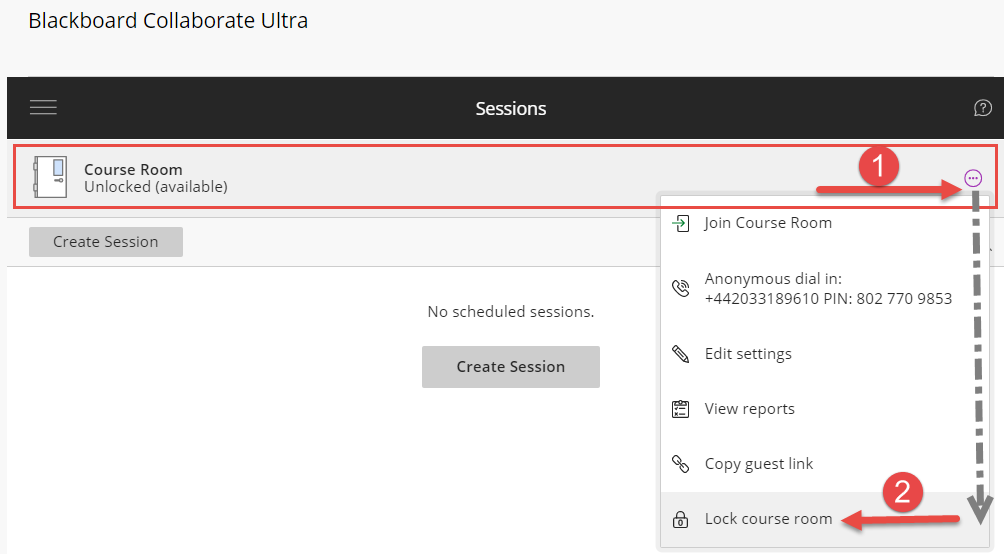
    Lock the Course Room
    Lock the Course Room

    Back to top

    Schedule a Virtual Class


    1. Click “Create Session”.
    2. Type the session name. (Best to type your course name and number).
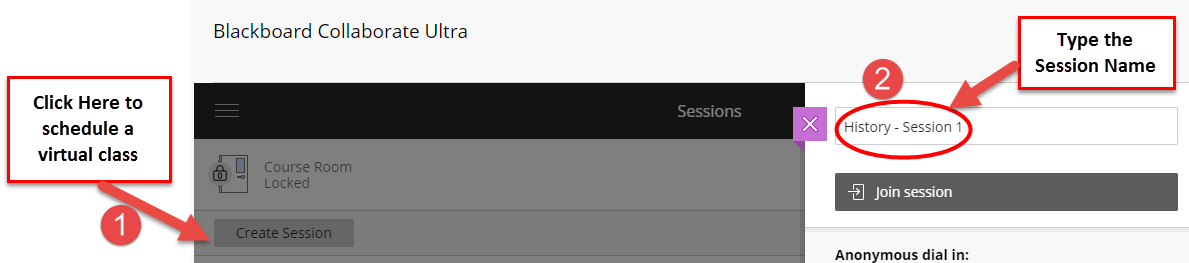
      Schedule a Virtual Class
    3. check the “Guest Access”. This will create a link that you can use to invite external participants to your online class. Remember your students can access the class from the blackboard course menu “Distance Learning”. 

    4. Enter the session’s “Start” and “End” date and time.

      Click “Create”.

      Schedule a Virtual ClassSchedule a Virtual Class
    5. Select the length of the early time to enter the session for you and your students.

    6. select the default settings for your participants. Uncheck the video, and whiteboard, so you can take control of the class. You may uncheck audio also. These settings can be modified while the class is running later.

    7. Click “Create”.


    Back to top

    Invite students to the Collaborate Ultra class

    You can invite your students to the class by two ways:

    1. Through the Course Menu in Blackboard (This is the recommended way, so students can access the session with their QU user details)Invite your students to the class
    2. Guest Link (Copy the guest link of the virtual class and send it to your students by email. This way is recommended if students are not able to login to Blackboard due to slowness or network problems. The link will take them directly to Collaborate.)


      Invite your students to the class

    Back to top

    Join the Collaborate Session

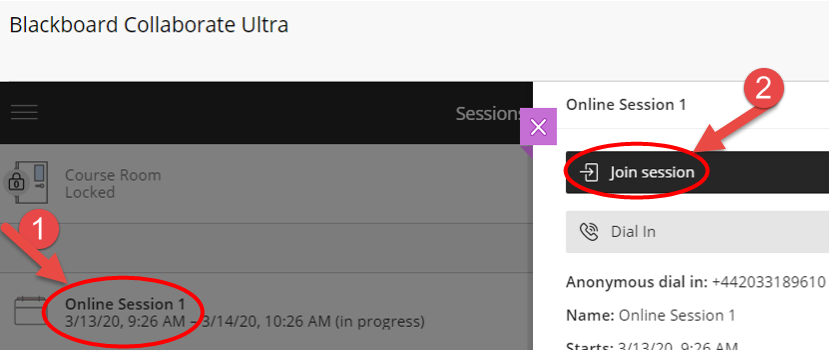
    From the BB Collaborate Ultra page

    1. Click the session name.
    2. Click “Join Session”. 
      Join the virtual class through Blackboard

    The Collaborate Ultra class interface
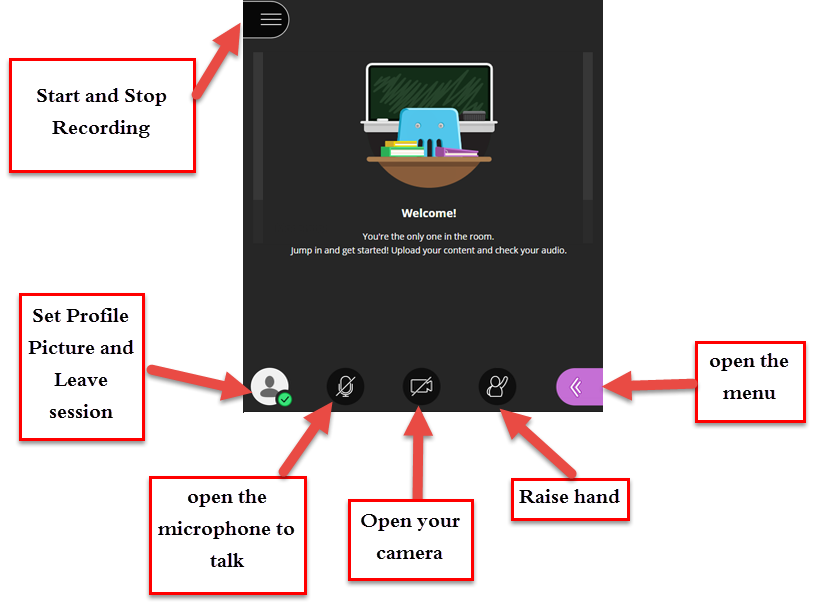
    Join the virtual class through Blackboard

    Back to top

    Share a presentation or file on the screen

    We can upload a PDF, PowerPoint, GIF, JPG, or PNG files (Not to exceed 60 MD). To do so:

    1. Click the right bottom menu button.icon
    2. Click “Share Contenticon
    3. Click “Add Files
    4. After the file is uploaded, select it
    5. Click “Share Now
    6. Click on one slide to start displaying on the screen
      Share a presentation
    7. The presentation will appear on the screen.
      Share a presentation

    Back to top

    Share a Whiteboard

    We can upload a PDF, PowerPoint, GIF, JPG, or PNG files (Not to exceed 60 MD). To do so:

    1. Click the right bottom menu button.icon
    2. Click “Share Contenticon
    3. Click “Share Whiteboard
    4. You can write on it using some drawing tools at the top.icon
    5. You can stop sharing the Whiteboard by clicking the button at the top right 
      Share a Whiteboard

    Back to top

    Share an application

    1. Open the application that you want to demonstrate (Excel, PP, MS Word, etc.) outside BB Collaborate, and keep it maximized
    2. In the Collaborate class. Click the right bottom menu button.icon
    3. Click “Share Contenticon
    4. Click “Share Application/ Screen”, and then
    5. Select “Share Application Window
    6. Select the window of the application that you want to share and click “Share
    7. You can go through your demo and then click “Stop Sharing” when finished.
      Share an application / screen

    Back to top

    Share a video

    1. Open the video in a Chrome tab and keep it maximized
    2. In the Collaborate class. Click the right bottom menu button.icon
    3. Click “Share Contenticon
    4. Click “Share Application/ Screen”, and then
    5. Select “Chrome Tab
    6. Select the tab of the video that you want to share.
    7. Make sure that “Share Audio” is selected and then click “Share
    8. You can run the video. When finished, click “Stop Sharing”.
      Share a video

    Back to top

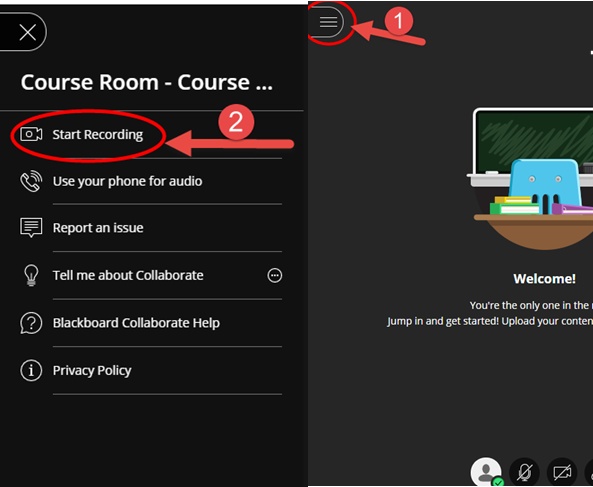
    Record your Session

    1. While inside the virtual class, click on the top left menuIcon
    2. Click “Start Recording”.
    3. When finished, flow the same steps to “Stop Recording”.
      Record your Session

    Back to top

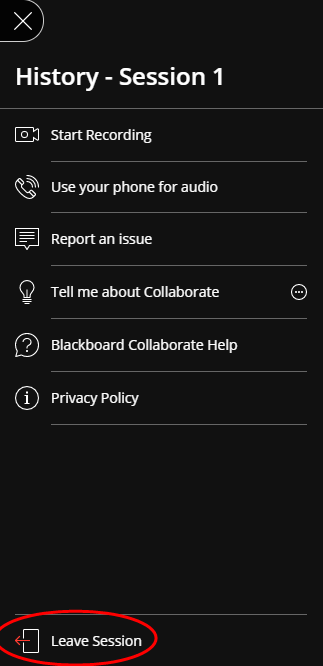
    Leave the Collaborate Session

    1. While inside the virtual class, click on the top left menu Icon
    2. Select the last option “Leave Session
      Leave Session.png

    Back to top

    View Session recordings in Collaborate Ultra

    1. Access the Collaborate Ultra Tool
    2. From the Collaborate Ultra Page, click on the top left menuIcon
    3. Select Recordings
    4. Click on the recording that you want to view, then “Watch
    5. You can send the link of the recording to students by accessing the recording option and then copying the link.
      View Session RecordingView Session Recording

    Back to top

    If the teacher is using the link to invite students, he or she can send the recording link to students after the class. Here are the steps:

    1. From the Collaborate Ultra Page, click on the top left menuIcon
    2. Select “Recordings”.
    3. Locate your recording and open the options.icon
    4. Select “Copy Link” and send the link to students by email.
      Sending the Recording link to students
      Sending the Recording link to students

    Back to top

    How can students access recordings in Collaborate Ultra

    By Direct Link If the teacher is using the link to invite students, he or she can send the recording link to students after the class.
    Here are the steps:

    1. From the Collaborate Ultra Page, click on the top left menu Icon
    2. Select “Recordings”.
    3. Locate your recording and open the options.icon
    4. Select “Copy Link” and send the link to students by email.
      View Session Recording
      Sending the Recording link to studentsSending the Recording link to students

    Through BB course menu if the teacher made the tool available to them

    1. Access the Collaborate Ultra Tool
    2. From the Collaborate Ultra Page, click on the top left menu
    3. Select Recordings
    4. Click on the recording that you want to view, then “Watch
    5. You can send the link of the recording to students by accessing the recording option and then copying the link.
      View Session Recording

    Back to top

    Retrieve the attendance report in Collaborate Ultra

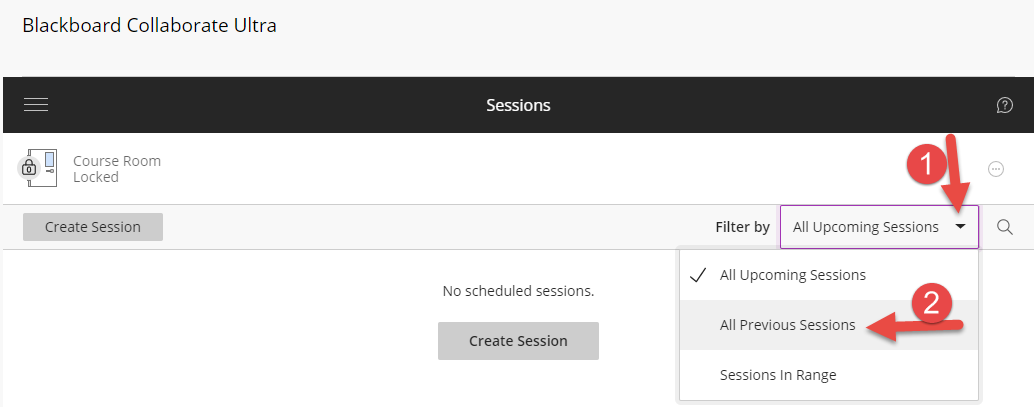
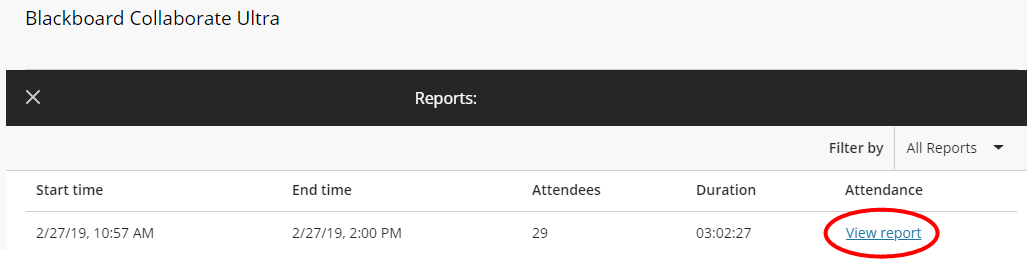
    After the session had ended, you can retrieve the attendance report from the Collaborate Ultra page by accessing “All Previous Sessions” and then clicking “View Reports” from the session options.
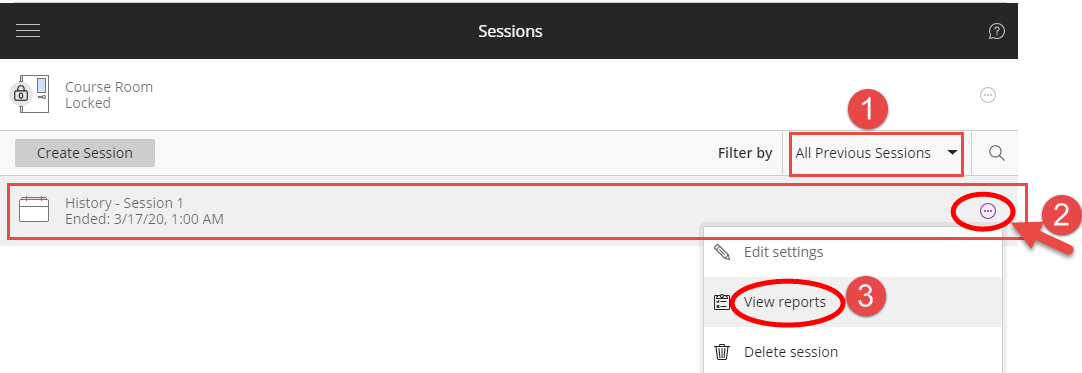
    Retrieve Attendance ReportRetrieve Attendance Report
    Retrieve Attendance Report

    Back to top